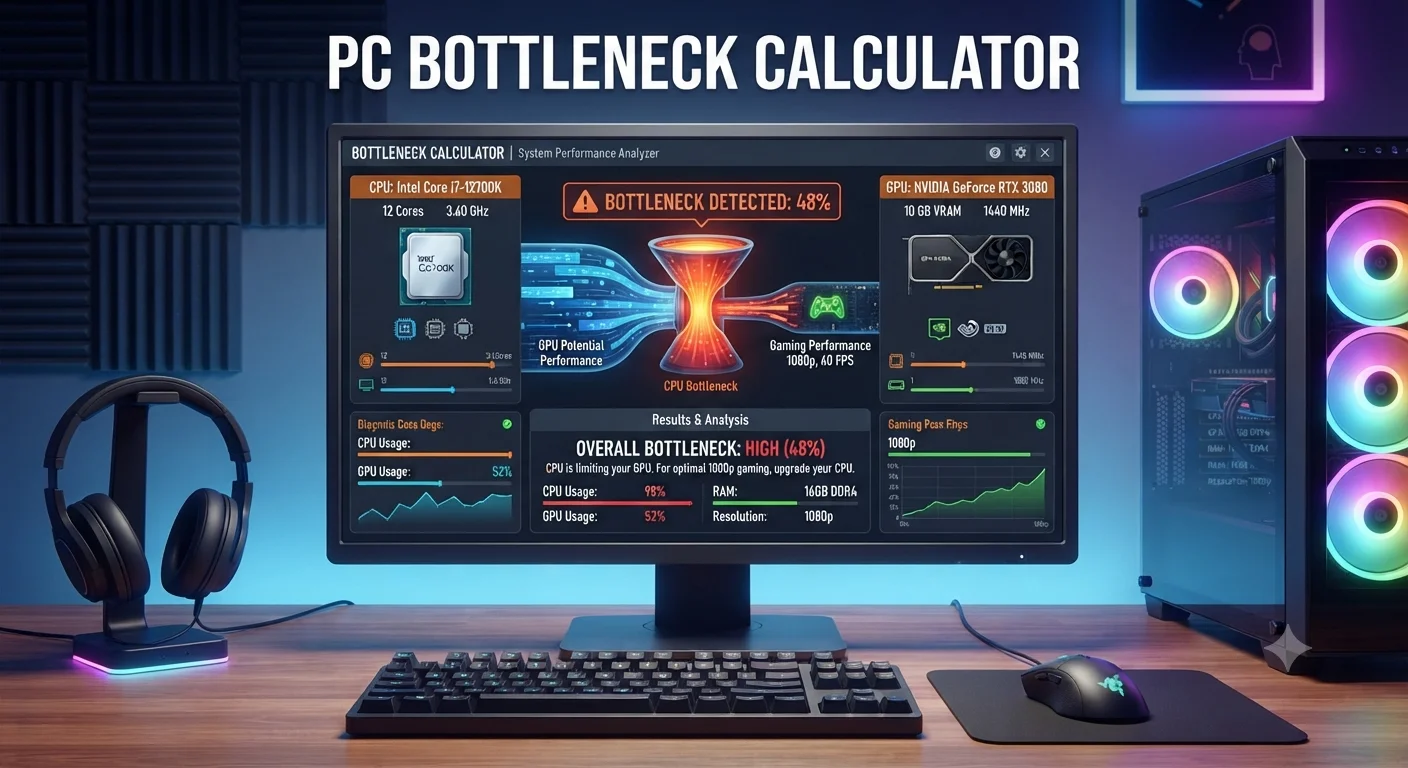
You just spent hundreds of dollars on a new graphics card. You install your favorite game, crank up the settings, and expect a massive frame rate boost. Instead, the numbers barely move. Sound familiar? This frustrating scenario happens to thousands of PC builders every year, and in almost every case, the root cause is the same: a hardware bottleneck.
If you've never heard the term before, don't worry. By the end of this guide, you'll understand exactly what a bottleneck is, why it quietly kills your gaming performance, and how a few minutes with a tool like the Bottleneck Calculator can save you hundreds of dollars in wasted upgrades.
The Simple Truth About PC Performance
Every computer is a chain of parts working together the processor, the graphics card, the memory, the storage drive. A chain is only as strong as its weakest link. In PC terms, that weakest link is called a bottleneck: the one component that can't keep pace with the rest of the system, quietly dragging everything else down with it.
Here's the part most people miss. It doesn't matter how expensive or powerful your graphics card is if your processor can't send it information fast enough. It doesn't matter how fast your CPU calculates game logic if your GPU can't render the frames in time. Performance is always limited by whichever piece finishes its job last.
This is precisely why two people can buy the exact same graphics card and get completely different results. One person pairs it with a modern, well-matched processor and enjoys smooth, high frame rates. The other pairs it with an aging CPU from several years back and wonders why their expensive new card barely outperforms their old one.
Two Types of Bottlenecks, Two Very Different Outcomes
- The Simple Truth About PC Performance
- Two Types of Bottlenecks, Two Very Different Outcomes
- Why Guessing Is a Bad Strategy
- How a Bottleneck Percentage Should Guide Your Decisions
- Three Real Situations Where This Actually Matters
- Building Smarter From the Start
- Common Myths That Trip Up New PC Builders
- Frequently Asked Questions
Not all bottlenecks are created equal, and understanding the difference changes how you should react to one.
A CPU bottleneck happens when your processor can't keep up with your graphics card. You'll notice your GPU usage sitting well below 90% while your CPU usage sits near 100%. This is the bad kind of bottleneck your expensive graphics card is sitting partially idle, waiting for instructions instead of rendering at full speed. Open-world games, strategy titles with hundreds of units on screen, and simulation-heavy games are the most common places this shows up.
A GPU bottleneck, on the other hand, is usually nothing to worry about. This is when your graphics card is working at nearly 100% while your processor still has headroom to spare. FPS Estimator In most gaming setups, this is actually the goal it means your most expensive component is being fully utilized rather than sitting around waiting.
The resolution you play at changes this picture dramatically. At 1080p, the CPU does relatively more work handling frame rates, so CPU bottlenecks show up more often. At 4K, the GPU shoulders the vast majority of the workload, which is why the exact same hardware combination can look perfectly balanced at one resolution and heavily bottlenecked at another.
Why Guessing Is a Bad Strategy
Before tools existed to measure this properly, PC builders relied on forum threads, YouTube comments, and gut feeling to figure out if their parts were a good match. The problem is that hardware performance doesn't scale in a simple, linear way. A processor that's "one generation newer" isn't automatically fast enough for a top-tier graphics card, and a budget GPU paired with a flagship CPU can leave serious performance on the table without you ever realizing it.
This is where a dedicated calculator changes everything. Instead of piecing together anecdotal advice, you get an actual percentage based on real benchmark data a number that tells you exactly how much performance is being lost and which component is responsible for it.
How a Bottleneck Percentage Should Guide Your Decisions
Once you have a number in front of you, here's roughly how to read it:
-
Under 10% Your system is well balanced. Don't touch anything.
-
10–20% A mild mismatch. You probably won't notice it in everyday use, but demanding titles might show small dips.
-
20–30% A real, measurable bottleneck. Upgrading the weaker component will produce a noticeable difference.
-
Above 30% A severe mismatch. One component is being seriously held back, and an upgrade should be a priority.
Recommended Articles
 GENERAL POSTS
Anonymously Instagram Story Viewer
GENERAL POSTS
Anonymously Instagram Story Viewer GENERAL POSTS
Shop Disco Cowboy Hat : The Ultimate Guide to Disco Cowboy Hats
GENERAL POSTS
Shop Disco Cowboy Hat : The Ultimate Guide to Disco Cowboy Hats GENERAL POSTS
Why Online Calculators Are the Smartest Tool for Everyday Decisions
GENERAL POSTS
Why Online Calculators Are the Smartest Tool for Everyday Decisions GENERAL POSTS
IT Word Search: The Perfect Puzzle for Tech Learners, Computer Science Students, and Digital Enthusiasts
GENERAL POSTS
IT Word Search: The Perfect Puzzle for Tech Learners, Computer Science Students, and Digital Enthusiasts
The key mistake people make is BMI Calculator panicking over any bottleneck at all. Perfect 0% balance is essentially impossible to achieve and not even a worthwhile goal. Every real-world build has some degree of imbalance what matters is keeping it in the acceptable range.
Three Real Situations Where This Actually Matters
Buying a new GPU. Before you spend money on a graphics card upgrade, check your current CPU against the new card. If the result shows a heavy CPU bottleneck, you now know that upgrading the GPU alone won't get you the performance boost you're expecting the processor needs attention too, or the new card's power will be wasted. And if a more powerful GPU is on the way, it's worth running the PSU Calculator too, so your power supply can actually handle it.
Planning a first-time build. Instead of copying a build list from a video and hoping it works out, you can test combinations before you buy anything. This prevents the classic beginner mistake of pairing a high-end GPU with a budget CPU and being disappointed with the results.
Diagnosing an existing PC. If a game runs worse than you expect given your specs, a quick check tells you immediately whether your processor or graphics card is the limiting factor, so you know exactly where to focus your next upgrade dollar.
Building Smarter From the Start
The best fix for a bottleneck is avoiding one in the first place. A few practical habits go a long way:
Match component tiers intentionally. A mid-range GPU belongs with a mid-range CPU, not a bargain-bin processor. Think about your actual use case before you buy competitive shooters chasing high frame rates lean more on the CPU, while visually rich single-player games and high-resolution gaming lean more on the GPU. Don't forget RAM speed either; even a perfectly matched CPU and GPU pair can be held back by slow or insufficient memory. And when possible, build on a platform with a solid upgrade path, so you can replace the weaker component later without rebuilding the entire system.
Common Myths That Trip Up New PC Builders
A lot of misinformation floats around online about bottlenecks, and believing the wrong thing can lead to bad purchasing decisions. Here are a few myths worth clearing up.
"Any bottleneck at all means something is wrong." Not true. Every real-world PC has some level of imbalance between components. Chasing a perfect zero percent match is unrealistic and usually a waste of money, since the returns on eliminating the last few percentage points are minimal compared to the cost involved.
"A bottleneck will damage my hardware." This is simply false. A bottleneck affects performance and efficiency, not the physical health of your components. Your CPU or GPU won't wear out faster because the other part can't keep pace you'll just get less performance than you paid for.
"CPU bottlenecks always tank your frame rate." The real impact depends heavily on the game and the resolution. In GPU-heavy titles at 4K, a CPU bottleneck might barely register. In fast-paced competitive games at 1080p, the same CPU could hold back your frame rate significantly. Context always matters more than the raw percentage alone.
"Bottleneck calculators are perfectly precise." These tools rely on benchmark averages and typical performance profiles, not a live test of your exact machine. Background processes, cooling performance, driver versions, and RAM speed can all shift your real-world results slightly. Treat the output as a strong, reliable guide rather than an exact guarantee it will point you in the right direction even if the final number isn't identical to what you'd measure with monitoring software during actual gameplay.
Read More Articals
Frequently Asked Questions
How do I know if my PC currently has a bottleneck? Open a performance monitoring tool while playing a demanding game and watch both your CPU and GPU usage. If your GPU stays below roughly 90% while your CPU sits at 100%, you're looking at a CPU bottleneck. If it's the reverse, your GPU is the limiting factor, which is usually the preferred outcome.
Does upgrading RAM help with bottlenecks? Yes, in many cases. Slow or insufficient memory can bottleneck both the CPU and GPU simultaneously, since both components depend on quick access to data. Running RAM at the speed recommended by your processor's manufacturer avoids introducing an unnecessary third bottleneck into the equation.
Should I check for bottlenecks before or after buying new parts? Ideally, both. Check before buying to avoid pairing mismatched components in the first place, and check again after building to confirm everything performs as expected and to plan your next upgrade intelligently.