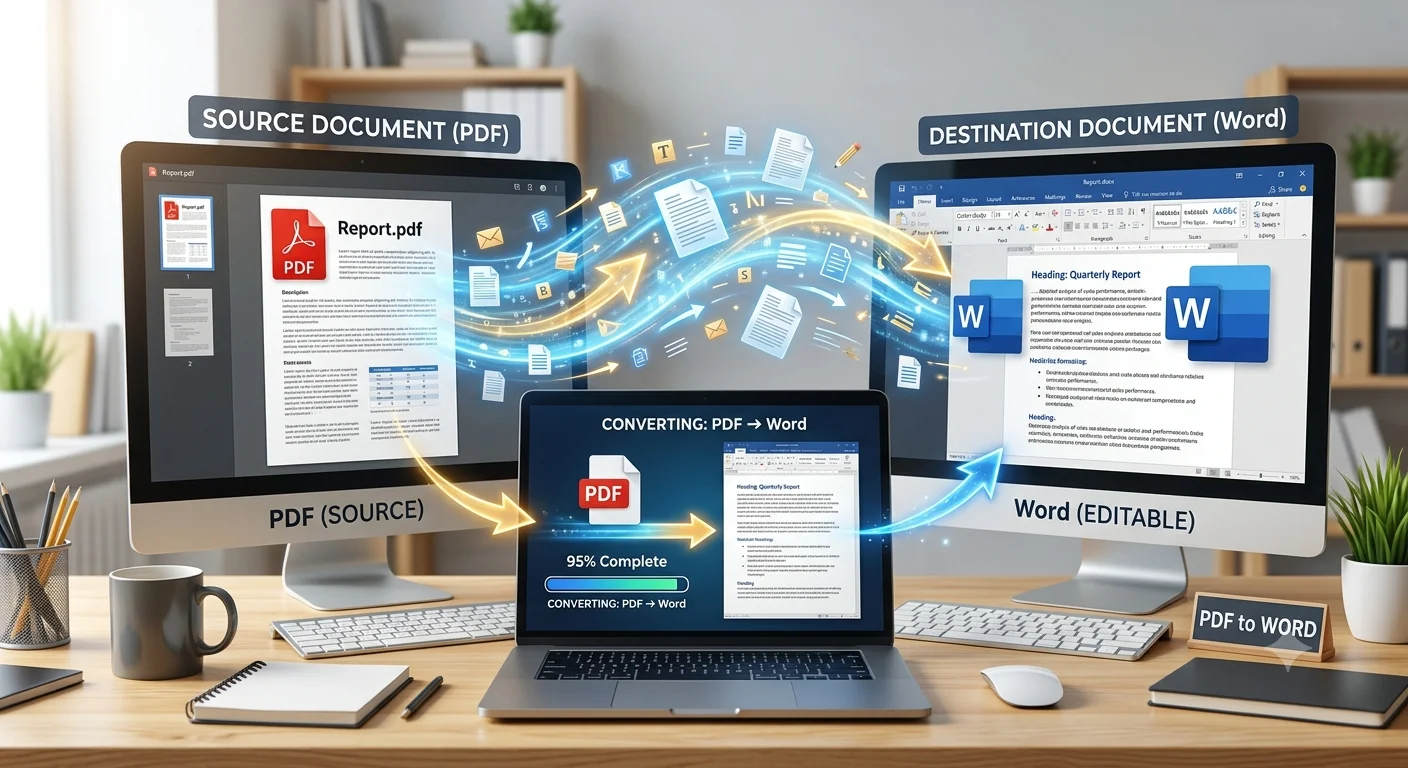
PDF files are great for sharing documents that need to look the same on every device. But when you need to edit that content fix a typo, update numbers, or reuse a paragraph a locked PDF becomes a real headache. That's where a PDF to Word converter comes in. It transforms a static PDF into a fully editable .docx file that opens in Microsoft Word, Google Docs, or any word processor.
This guide covers everything you need to know: why conversions matter, how the process works, common issues, and how to get the cleanest possible results.
What Is a PDF to Word Converter?
A PDF to Word converter is a tool that reads the content of a PDF file text, images, tables, and formatting and rebuilds it inside a Word-compatible document (.doc or .docx). Instead of retyping an entire report or contract from scratch, you get an editable version in seconds.
There are two main types of PDF files, and the conversion quality depends heavily on which type you're working with:
| PDF Type | Description | Conversion Difficulty |
|---|---|---|
| Text-based PDF | Created digitally (e.g., exported from Word or Google Docs) | Easy text is selectable and machine readable |
| Scanned PDF (image-based) | Created by scanning a paper document | Harder requires OCR (Optical Character Recognition) |
Why Convert PDF to Word?
- What Is a PDF to Word Converter?
- Why Convert PDF to Word?
- How PDF to Word Conversion Works
- Step 1: Text Extraction
- Step 2: OCR (If Needed)
- Step 3: Layout Reconstruction
- Step 4: Formatting Preservation
- Step 5: Output Generation
- Step-by-Step: How to Convert PDF to Word
- Common Formatting Issues After Conversion
- PDF to Word: Online Tools vs. Desktop Software
- Tips for the Best Conversion Results
- Frequently Asked Questions
- Is PDF to Word conversion free?
- Can I convert a scanned PDF to Word?
- Will the formatting stay exactly the same?
- Is it safe to use online PDF to Word converters?
- What's the difference between .doc and .docx?
- Final Thoughts
People convert PDFs to Word documents for many practical reasons:
- Editing content updating resumes, contracts, forms, or reports without starting over
- Reusing text pulling paragraphs into new documents, proposals, or presentations
- Fixing formatting errors correcting a PDF that didn't export cleanly
- Collaboration Word's track changes and comments make team editing easier than PDF annotation tools
- Accessibility Word documents work better with screen readers and text-to-speech tools
- Translation many translation tools work more smoothly with Word files than PDFs
How PDF to Word Conversion Works
Step 1: Text Extraction
The converter scans the PDF and identifies text elements, distinguishing them from images, backgrounds, and vector graphics.
Step 2: OCR (If Needed)
If the PDF is a scanned image rather than digital text, Optical Character Recognition software analyzes the shapes of characters and converts them into machine-readable text. Modern OCR engines can achieve over 98% accuracy on clean, well-scanned documents.
Step 3: Layout Reconstruction
The tool maps out the original structure paragraphs, headings, bullet points, tables, and columns and recreates that layout in the Word file.
Step 4: Formatting Preservation
Fonts, font sizes, bold/italic styling, spacing, and page breaks are mapped as closely as possible to match the source document.
Step 5: Output Generation
The final .docx file is generated, ready to open and edit in Word or any compatible application.
Step-by-Step: How to Convert PDF to Word
- Choose your converter online tool, desktop software, or built-in app feature
- Upload your PDF file drag and drop or browse to select it
- Select output format choose .docx (recommended) or .doc
- Enable OCR if needed turn this on for scanned or image-based documents
- Start the conversion processing time depends on file size and page count
- Download and review always check the converted file for formatting errors
- Make final edits clean up any spacing, font, or table issues in Word
Common Formatting Issues After Conversion
Even the best converters aren't perfect. Here are issues you might encounter and how to fix them:
Recommended Articles
 GENERAL POSTS
 GENERAL POSTS
 GENERAL POSTS
 GENERAL POSTS
Misaligned tables Complex tables with merged cells sometimes break apart. Fix: select the table and use Word's "AutoFit" and "Merge Cells" tools to rebuild structure.
Font substitution If the original PDF used a font not installed on your system, Word may substitute a similar one. Fix: install the original font or manually reformat using a close match.
Broken bullet points or numbering Lists sometimes convert as plain text with symbols. Fix: select the text and reapply Word's bullet or numbering formatting.
Extra blank lines or page breaks PDFs with multiple columns or unusual spacing can create unwanted breaks. Fix: use Word's "Show Formatting Marks" (Ctrl+Shift+8) to locate and delete extra breaks.
Image placement shifts Images may shift position, especially with text-wrapping PDFs. Fix: right-click the image, select "Wrap Text," and reposition manually.
PDF to Word: Online Tools vs. Desktop Software
| Factor | Online Converters | Desktop Software (e.g., Adobe Acrobat, Word itself) |
|---|---|---|
| Cost | Often free or freemium | Usually paid, one-time or subscription |
| Speed | Fast for small files | Can handle large batches offline |
| Privacy | Files uploaded to a server | Files stay on your device |
| OCR quality | Varies by tool | Generally more advanced and accurate |
| Internet required | Yes | No |
| Best for | Occasional, quick conversions | Frequent, large-volume, or sensitive documents |
Tip: Microsoft Word itself can open most PDFs directly (File > Open > select PDF) and will attempt an automatic conversion useful for simple, text-based documents without needing a separate tool.
Tips for the Best Conversion Results
- Start with a high-quality PDF. A clear, well-formatted source PDF converts far more accurately than a messy or low-resolution one.
- Use OCR only when necessary. Applying OCR to a text-based PDF can sometimes reduce accuracy compared to direct text extraction.
- Convert one section at a time for long documents. This makes it easier to spot and fix formatting errors.
- Keep a backup of the original PDF. Always retain the source file in case the conversion needs to be redone.
- Check page numbers and headers/footers. These are common areas where conversion tools lose alignment.
- Proofread after conversion. OCR-based conversions, in particular, can introduce small text errors that spell-check may miss (e.g., "l" mistaken for "1").
Frequently Asked Questions
Is PDF to Word conversion free?
Many online tools offer free conversion for basic use, often with file size or page limits. Advanced features like batch conversion or high-accuracy OCR are usually part of paid plans.
Can I convert a scanned PDF to Word?
Yes, as long as the converter includes OCR technology. Without OCR, a scanned PDF will only convert as an image, not editable text.
Will the formatting stay exactly the same?
Simple documents usually convert cleanly. Complex layouts with tables, columns, and graphics may need manual touch-ups after conversion.
Is it safe to use online PDF to Word converters?
Reputable tools use encrypted connections and typically delete uploaded files after a set period. For sensitive or confidential documents, desktop software that processes files locally is the safer choice.
What's the difference between .doc and .docx?
docx is the modern Word format (used since Word 2007) and offers better compression and compatibility. .doc is the older format, still supported but less efficient. Choose .docx unless you need compatibility with very old software.
Final Thoughts
Converting a PDF to Word doesn't have to be complicated. Whether you're editing a contract, updating a resume, or repurposing a report, the right converter paired with a quick formatting check can save hours of manual retyping. For simple text documents, almost any converter will do the job well. For scanned files or complex layouts, look for a tool with strong OCR and take a few extra minutes to review the output before you consider the job done.